
Course Evaluations
Course Evaluations Access for Students
Course evaluation surveys will be available for a few weeks at the end of each semester. When course evaluations are open, you can access them by clicking the link in the automated email you receive in your SAIC Gmail. You can also log in using the short version* of your username at evaluations.saic.edu, and clicking My Surveys in the upper left.
Course evaluations are anonymous. The software will not identify you, and your responses will not be available to instructors until after all grades have been posted.
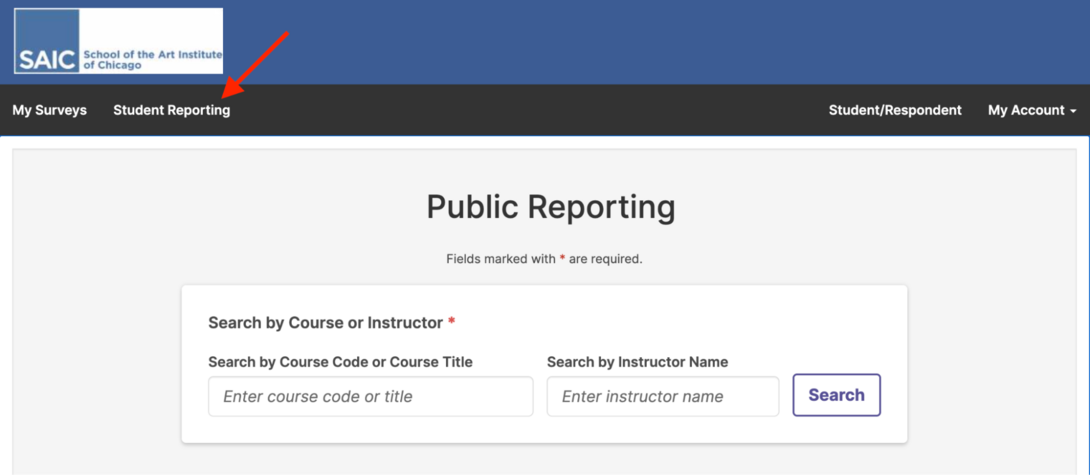
To view past course evaluations, log in at evaluations.saic.edu and select Student Reporting in the upper left. You can then search by course code, course title, or the instructor’s name.
If you have any questions, please get in touch at evals_admin@saic.edu.
Course Evaluations for Teachers
Log in using the short version* of your username at evaluations.saic.edu and click the term you wish to view (i.e., “2025 Fall Course Evaluations”).
All recent courses are displayed by term on the next screen. To download results for a specific course, click the download report icon next to the course name, then click Detailed Report + Comments in the pop-up menu.
A PDF report of your course evaluation results is downloaded to your computer.
To access additional course evaluations from earlier semesters, click Results and select Instructor Results from the drop down menu. Under Project, you can select additional year(s) from the drop down menu.

Additionally, while course evaluations are active, you can check your response rate by course. Click Results and select Response Rate Tracker. The information here is live and will show the current response rate.

*Your short username is the first initial of your first name followed by the first five letters of your last name. There can be up to 6 letters in your short username, and some users will also have a number following their username. Confirm that you know your short username before logging in. Example: user Bartholomew Cubbins short username is bcubbi.
For any questions related to Course Evaluations, email evals_admin@saic.edu.